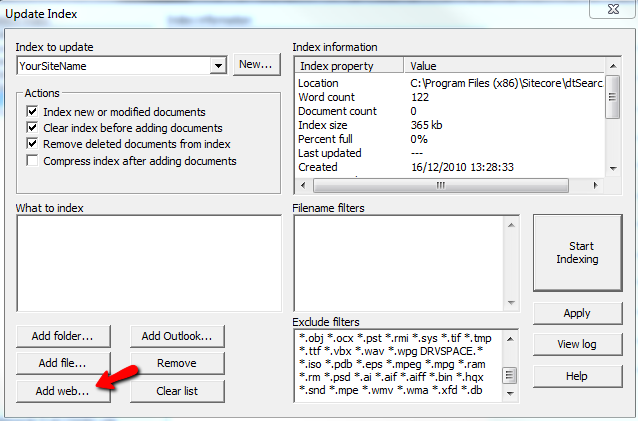
- Step 1 adapt your aspx
- Step 2 index your pages
- Step 3 install and configure
- Step 4 search with the Sitecore API
Here is an example of class to execute some search with dtsearch.
You can download it here
using System;
using System.Collections.Generic;
using System.Linq;
using System.Text;
using System.Xml;
using System.Data;
using System.Configuration;
using System.Collections;
using System.Web;
using System.Web.UI;

using Sitecore;
using Sitecore.Configuration;
using Sitecore.Diagnostics;
using Sitecore.Modules.dtSearch;
using Sitecore.Modules.dtSearch.Core;
using dtSearch.Engine;
using Sanitec;
using System.Xml.Linq;
using System.Text.RegularExpressions;
using Sitecore.Data.Items;
using System.IO;

namespace QuickSearch
{
    /// <summary>
    /// Can be used to avoid duplicate records
    /// </summary>
    public class SearchResultContentComparer : IEqualityComparer<SearchResultContent>
    {
        #region IEqualityComparer<SearchResultContent> Members
        public bool Equals(SearchResultContent x, SearchResultContent y)
        {
            return x.Url == y.Url
                || (!String.IsNullOrEmpty(x.ScProduct) && x.ScProduct == y.ScProduct);
        }

        public int GetHashCode(SearchResultContent obj)
        {
            return obj.Url.GetHashCode();
        }
        #endregion
    }

    public class SearchResultContent
    {
        private Item sitecoreItem = null;
        /// <summary>
        /// The corresponding sitecore item
        /// </summary>
        public Item SitecoreItem
        {
            get
            {
                //Handle the MediaItem item documents
                Regex reg = new Regex("^.*?/~/media/(.*?).ashx");
                Match match = reg.Match(Url);

                if (!match.Success)
                {
                    sitecoreItem = Sitecore.Context.Database.GetItem(ScID);
                }
                else
                {
                    string path = "/sitecore/media library/" + match.Groups[1];
                    sitecoreItem = Sitecore.Context.Database.SelectSingleItem(path);
                }

                return sitecoreItem;
            }
        }

        public string ScID { get; set; }
        public string Title { get; set; }
        public string Url { get; set; }
        public string Synopsis { get; set; }
        public string Score { get; set; }
        public string ScProduct { get; set; }
        public string ScLang { get; set; }

    }

    public class QuickSearchContent
    {
        public string Sitename { get; set; }

        private string nameIndexDtSearch()
        {
            string dtSearchIndex = "dtSearchIndexName_" + Sitename;
            return Sitecore.Configuration.Settings.GetSetting(dtSearchIndex);
        }

        private string pathIndexDtSearch()
        {
            string dtSearchIndexFolder = "dtSearchIndexFolder_" + Sitename;
            return Sitecore.Configuration.Settings.GetSetting(dtSearchIndexFolder);
        }

        /// <summary>
        /// The sitename must correspond to the settings dtSearch.config
        ///  dtSearchIndexFolder_[sitename]
        ///  dtSearchIndexName_[sitename]
        /// </summary>
        /// <param name="sitename">The sitename must correspond to the settings dtSearch.config</param>
        public QuickSearchContent(string sitename)
        {
            Sitename = sitename;
        }

        /// <summary>
        /// Return the results
        /// </summary>
        /// <param name="query">The words to search for</param>
        /// <returns>the results</returns>
        public List<SearchResultContent> LoadResults(string query)
        {
            List<SearchResultContent> results = new List<SearchResultContent>();

            if (!string.IsNullOrEmpty(query))
            {
                XDocument searchResults = XDocument.Load(new XmlNodeReader(GetXmlResults(query)));

                results = (from XElement node in searchResults.Descendants("item")
                            select new SearchResultContent
                            {
                                ScID = (node.Element("scID") == null ? String.Empty : node.Element("scID").Value),
                                ScProduct = (node.Element("scProduct") == null ? String.Empty : node.Element("scProduct").Value),
                                ScLang = (node.Element("scLang") == null ? String.Empty : node.Element("scLang").Value),
                                Score = node.Attribute("score").Value,
                                Title = node.Element("title").Value,
                                Url = node.Element("url").Value,
                                Synopsis = node.Element("synopsis").Value
                            }).ToList();
            }

            return results;
        }

        private dtSearchEngine your_dtSearch;

        /// <summary>
        /// Initialize DTsearch
        /// </summary>
        /// <param name="query">The words to search for</param>
        /// <returns>An XmlDocument with the results</returns>
        private XmlDocument GetXmlResults(string query)
        {
            ISearch engine = dtSearchFactory.CreateSearchEngine();
            Assert.IsNotNull(engine, "Cannot create the dtsearch engine the 'dtSearchIndexName' key in the web.config may be incorrect");

            // Get the dtSearch engine implementation
            your_dtSearch = engine as dtSearchEngine;
            Assert.IsNotNull(your_dtSearch, "Cannot cast the engine to dtSearchEngine");

            // Set index
            string pathIndex = pathIndexDtSearch() + nameIndexDtSearch() + "\\";
            Assert.IsTrue(System.IO.Directory.Exists(pathIndex), "Could not find the directory: " + pathIndex);
            your_dtSearch.Index = pathIndex;

            // Execute search
            your_dtSearch.Search(query, Sitecore.Modules.dtSearch.Core.Constants.Options.WildCards | Sitecore.Modules.dtSearch.Core.Constants.Options.AllWords);

            // Get search results as XML
            return engine.SearchResults;
        }
    }
}
Usage of this class:
QuickSearchContent qsc = new QuickSearchContent("YourSite");
var results = qsc.LoadResults("Your Query");