To perform a case insensitive comparison you may use the function : CompareCaseInsensitive.
Example:
/sitecore/content//*[CompareCaseInsensitive(@@myfield,'MyValue')]
If you need to compare the field 'name' case insensitively you may use 'key' in place of 'name'.
Example:
/sitecore/content//*[@@key,'myvalue')]
Important: the search value has to be lower case!
All the XPath query function are available in Sitecore.Data.Query.Functions
November 29, 2010


How to display popup messages in the admin
If you need to interact with the sitecore interface with a custom field or a custom sitecore admin screen you will probably need some input from the user, alert, ...
This operation is possible with only a few lines of code:
Show a popup:
Sitecore.Context.ClientPage.ClientResponse.Alert("My message");
Download a file
Sitecore.Context.ClientPage.ClientResponse.Download(@"c:\MyPath\Myfile.xxx");
To create an input, use this function:
Input(string text, string defaultValue, string validation, string validationText, int maxLength)
A complete example of code for the input:
This operation is possible with only a few lines of code:
Show a popup:
Sitecore.Context.ClientPage.ClientResponse.Alert("My message");
Download a file
Sitecore.Context.ClientPage.ClientResponse.Download(@"c:\MyPath\Myfile.xxx");
To create an input, use this function:
Input(string text, string defaultValue, string validation, string validationText, int maxLength)
A complete example of code for the input:
using System;
using System.Collections.Generic;
using System.Linq;
using System.Text;
using Sitecore.Data.Items;
using Sitecore.Data.Fields;
using Sitecore;
using Sitecore.Diagnostics;

namespace MyNamespace
{
    class MyClass : Sitecore.Shell.Framework.Commands.Command
    {
        public override void Execute(Sitecore.Shell.Framework.Commands.CommandContext context)
        {
            if (context.Items.Length == 1)
            {
                Sitecore.Data.Items.Item item = context.Items[0];
                System.Collections.Specialized.NameValueCollection parameters = new System.Collections.Specialized.NameValueCollection();
                parameters["id"] = item.ID.ToString();
                parameters["language"] = item.Language.ToString();
                parameters["database"] = item.Database.Name;
                Sitecore.Context.ClientPage.Start(this, "Run", parameters);
            }
        }

        protected void Run(Sitecore.Web.UI.Sheer.ClientPipelineArgs args)
        {
            if (args.IsPostBack)
            {
                if ((!String.IsNullOrEmpty(args.Result)) && args.Result != "undefined" && args.Result != "null")
                {
                    Sitecore.Data.Database db = Sitecore.Configuration.Factory.GetDatabase(args.Parameters["database"]);
                    Sitecore.Data.Items.Item myItem = db.GetItem(new Sitecore.Data.ID(args.Parameters["id"]));
                }
            }
            else
            {

                Sitecore.Context.ClientPage.ClientResponse.Input("My Message:"
                    , "My Default Value"
                    , Sitecore.Configuration.Settings.ItemNameValidation
                    , "'$Input' is not a valid name.", MaxLenght);
                args.WaitForPostBack();
            }
        }
    }
}
Change the default subitems sort order
To do this you should go to the standard values of the items template.
Here you set the Subitems Sorting field in the Appearance section to the new default sorting.

If you cannot see the Appearance section, go to the view tab and check the Standard Fields checkbox.
Here you set the Subitems Sorting field in the Appearance section to the new default sorting.
If you cannot see the Appearance section, go to the view tab and check the Standard Fields checkbox.
Richtext Editor - Add code snippet or html templates
The code snippets allow the user to add easily a preformatted code. This method can be an easy way to insert a sort of template in a text zone.
In the core database:
* go to the item /sitecore/system/Settings/Html Editor Profiles/Rich Text Full/Snippets
* Insert a new item of type /sitecore/templates/System/Html Editor Profiles/Html Editor Snippet
* In the header type the name you want
* In the value type your html code to insert
The user can now add the snippets via this button:

In the core database:
* go to the item /sitecore/system/Settings/Html Editor Profiles/Rich Text Full/Snippets
* Insert a new item of type /sitecore/templates/System/Html Editor Profiles/Html Editor Snippet
* In the header type the name you want
* In the value type your html code to insert
The user can now add the snippets via this button:
RichText Editor - Changing available buttons, apparence, ...
In the core database, you have the different available profiles in /sitecore/system/Settings/Html Editor Profiles


The easiest way to create your own profile is:
- Duplicate the profile "Rich Text Full "
- Personalize the profile you have just created
- Duplicate the profile "Rich Text Full "
- Personalize the profile you have just created
To personalize a Template DataField, just add the profile Path to the Source property of this field

November 26, 2010
Adding css class in the Richtext editor
This post is not up to date anymore and may not working with recent versions of sitecore. So please refer to the new post here.
Checking the configuration
In the web.config, check the key WebStylesheet to know witch css is used for the Richtext editor (default value is /default.css)
Configure the css class available
In the css file you may now add your classes and it will be available in the dropdown "classes" of the Richtext editor.
The problem is that only simple classes are configurable to allow the selection in the dropdown.
You can use this kind of syntax:
But these syntax will be not available in the dropdown (but the rendering will be correct)
If you need to have a default template for the richtext you may complete the body element. So if you need to simulate the rendering in the website like it will be in the content placeholder skin this element.
UPDATE: It seem that in the new versions of sitecore you also need to update the file
\sitecore\shell\Controls\Rich Text Editor\ToolsFile.xml and change add your classes in the tag classes:
Checking the configuration
In the web.config, check the key WebStylesheet to know witch css is used for the Richtext editor (default value is /default.css)
Configure the css class available
In the css file you may now add your classes and it will be available in the dropdown "classes" of the Richtext editor.
After changing the css file you need to delete your browser domain cache. To do that you may use the developer tools toolbar. In the menu "Cache" select the option "Clear browser cache for this session" (ctrl+d)
You can use this kind of syntax:
.test {font-weight: bold;}
.test9 {}
But these syntax will be not available in the dropdown (but the rendering will be correct)
.test2 .test3 {font-style: italic;}
p .test6 {font-weight: bold;}
.test7 p .test8 {font-weight: bold;}
If you need to have a default template for the richtext you may complete the body element. So if you need to simulate the rendering in the website like it will be in the content placeholder skin this element.
body { }
UPDATE: It seem that in the new versions of sitecore you also need to update the file
\sitecore\shell\Controls\Rich Text Editor\ToolsFile.xml and change add your classes in the tag classes:
<classes>
 <class name="test" value=".test" />
 <class name="test9" value=".test9" />
</classes>
It also seem that they are some bugs in IE with the caching. So use firefox to test it.
November 25, 2010
Change the height of a mulit-line field
In the standard values of the field, section appearance, set the value of the field Style to height:300px;
How to use the multisite manager
After some experimentation with the multi sites in sitecore and the Multi Sites Manager package, here are some tips.
Using the multi site (in the web.config)
You need to add your sites in the node in the web.config. But you need to add your websites just after the shell and login nodes . If you put your website in first position, you will experience errors with the login of the sitecore admin.
Example:
Using the Multi Site Manager
To create a new website, follow these steps:
Add a new website and complete these fields: rootPath, startItem and the hostname
Publish the full website
Flush the sites!! (this button will create the new sites. Flush the sites after every modification)

Important
With the multi-sites manager, if you use different domains for different websites, you will probably have a "access is denied" error. Normally you have a security feature to access the sites. To show this column in the security editor, click on "Columns" and check "Site Enter".
But this functionality doesn't work ;-D

How to resolve the "access is denied" error?
You can just replace:
by
Using the multi site (in the web.config)
You need to add your sites in the node in the web.config. But you need to add your websites just after the shell and login nodes . If you put your website in first position, you will experience errors with the login of the sitecore admin.
Example:
<sites>
 <site name="shell" virtualFolder="/sitecore/shell" physicalFolder="/sitecore/shell" rootPath="/sitecore/content" startItem="/home" language="en" database="core" domain="sitecore" loginPage="/sitecore/login" content="master" contentStartItem="/Home" enableWorkflow="true" xmlControlPage="/sitecore/shell/default.aspx" browserTitle="Sitecore" htmlCacheSize="2MB" registryCacheSize="3MB" viewStateCacheSize="200KB" xslCacheSize="5MB"/>
 <site name="login" virtualFolder="/sitecore/login" physicalFolder="/sitecore/login" database="core" domain="sitecore"/>
 <site name="myWebsite" hostName="myWebsite.be" virtualFolder="/" physicalFolder="/" startItem="/" contentStartItem="/default" rootPath="/sitecore/content/myWebSite" database="web" domain="sitecore" allowDebug="true" cacheHtml="true" htmlCacheSize="10MB" enablePreview="true" enableWebEdit="true" enableDebugger="true" disableClientData="false" />
 <site name="testing" virtualFolder="/sitecore/testing" physicalFolder="/sitecore/testing" rootPath="/sitecore/content" database="master" domain="sitecore" enableWorkflow="true"/>
Using the Multi Site Manager
To create a new website, follow these steps:
Add a new website and complete these fields: rootPath, startItem and the hostname
Publish the full website
Flush the sites!! (this button will create the new sites. Flush the sites after every modification)

Important
With the multi-sites manager, if you use different domains for different websites, you will probably have a "access is denied" error. Normally you have a security feature to access the sites. To show this column in the security editor, click on "Columns" and check "Site Enter".
But this functionality doesn't work ;-D

How to resolve the "access is denied" error?
You can just replace:
<!- SITES ->
<siteManager defaultProvider="config">
 <providers>
  <clear/>
  <add name="config" type="Sitecore.Sites.ConfigSiteProvider, Sitecore.Kernel" siteList="sites" checkSecurity="false"/>
 </providers>
</siteManager>
by
<!- SITES ->
<siteManager defaultProvider="config">
 <providers>
  <clear/>
  <add name="config" type="Sitecore.Sites.ConfigSiteProviderHack, MultiSitesManager" siteList="sites" checkSecurity="false"/>
 </providers>
</siteManager>
DataPager with sitecore
Here is the procedure to integrate the datapager in sitecore
- Add this in the web.config if not exist
<rendering>
  <typesThatShouldNotBeExpanded>
      <type>System.Web.UI.WebControls.DataPager</type>
  </typesThatShouldNotBeExpanded>
</rendering>
- In the html add the datapage
<asp:DataPager
 ID="DataPagerRepeater"
 runat="server"
 PagedControlID="ItemsRepeaterType1"
 PageSize="1">
 <Fields>
  <asp:NextPreviousPagerField
   FirstPageImageUrl="/design/twyford/images/paging_first_blue.gif"
   PreviousPageImageUrl="/design/twyford/images/paging_previous_blue.gif"
   ShowFirstPageButton="True"
   ShowPreviousPageButton="True"
   ShowLastPageButton="False"
   ShowNextPageButton="False"
   ButtonCssClass="icons"
   ButtonType="Image" />

  <asp:NumericPagerField
   ButtonCount="20" CurrentPageLabelCssClass="current" />

  <asp:NextPreviousPagerField
   ShowFirstPageButton="False"
   ShowPreviousPageButton="False"
   ShowNextPageButton="True"
   ShowLastPageButton="True"
   NextPageImageUrl="/design/twyford/images/paging_next_blue.gif"
   LastPageImageUrl="/design/twyford/images/paging_last_blue.gif"
   ButtonCssClass="icons"
   ButtonType="Image"  />
 </Fields>
</asp:DataPager>
- In the ListView add the properties: OnSelectedIndexChanged, OnPagePropertiesChanged and OnPagePropertiesChanging
<asp:ListView ID="ItemsRepeaterType1" runat="server" OnItemDataBound="ItemsRepeater_ItemDataBound" OnSelectedIndexChanged="ItemsRepeaterType1_OnSelectedIndexChanged" OnPagePropertiesChanged="ItemsRepeaterType1_PagePropertiesChanged" OnPagePropertiesChanging="ItemsRepeaterType1_PagePropertiesChanging" > - Example of Page_Load:
private void Page_Load(object sender, EventArgs e)
{
 if (!IsPostBack)
 {
  BindData();
 }
}
Use a contextual button
In the core DB go to /sitecore/content/Applications/Content Editor/Ribbons/Contextual Ribbons
And create your items with these templates:

Here is a schema to now what is a strip, a chunk, ...

Then you only need to go to the standard value of the template where you want to see your button and click on "Contextual Tab" in the tab "Configure" and select your ribbon

And create your items with these templates:
Here is a schema to now what is a strip, a chunk, ...
Then you only need to go to the standard value of the template where you want to see your button and click on "Contextual Tab" in the tab "Configure" and select your ribbon
Change the en dictionary for the RAD Editor form EN
When you are opening the RTE editor the current item language name is transferred there as the “la=xx-XX” URL parameter.
This value is used for a spellchecking, i.e. if the current item language is “la-LA” then the “la-LA.tdf” dictionary will be used.
However when the item language is “en“ - Telerik control automatically interprets this value as “en-US” and used the “en-US.tdf” dictionary file.
Thus the only possible way to change the default dictionary for “en” items spellcheking is to rename the old “en-US.tdf” to something different and rename the “en-GB.tdf” file into “en-US.tdf”.
These dictionaries are located in “..\WebSite\sitecore\shell\RadControls\Spell\TDF”
This value is used for a spellchecking, i.e. if the current item language is “la-LA” then the “la-LA.tdf” dictionary will be used.
However when the item language is “en“ - Telerik control automatically interprets this value as “en-US” and used the “en-US.tdf” dictionary file.
Thus the only possible way to change the default dictionary for “en” items spellcheking is to rename the old “en-US.tdf” to something different and rename the “en-GB.tdf” file into “en-US.tdf”.
These dictionaries are located in “..\WebSite\sitecore\shell\RadControls\Spell\TDF”
Set a default folder for the Sitecore File Explorer Application
To set the default folder for the File Explorer application follow these steps:
- Log in to Sitecore CMS as an admin user
- Switch to the Core database and open the Content Editor application.
- Go to the /sitecore/content/Documents and settings/All users/Start menu/Right/Development Tools/File Explorer/ item.
- Add the “ro=/sitecore/shell/” value to the Parameters field.
See the logged users in the admin and kick it if needed
Sometime you need to kick some users but you only see the kick user screen when you try to login if they are allready the maximum users logged.
But you can use this screen:
http://website.com/sitecore/shell/Applications/Login/Users/Kick.aspx
But you can use this screen:
http://website.com/sitecore/shell/Applications/Login/Users/Kick.aspx
Get the logged users data in preview mode
Preview mode is always run in the context of anonymous user.
If you need the user from the admin you can use this method:
Sitecore.Publishing.PreviewManager.RestoreUser();
PS: This method work in the handlers too
If you need the user from the admin you can use this method:
Sitecore.Publishing.PreviewManager.RestoreUser();
PS: This method work in the handlers too
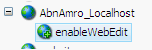
How to enable web edit with the multisite module?
Subscribe to:
Posts (Atom)